
What is EZTasks?
EZTasks is an AI-powered feature that turns meeting notes, documents, or photos of handwritten notes and whiteboards into a list of suggested tasks ready for your review. It reduces manual entry by pulling out action items from your notes, and it can also pick up due dates and names when the notes mention them. Every suggestion stays in a holding state until you review and approve it — so nothing goes live by accident.
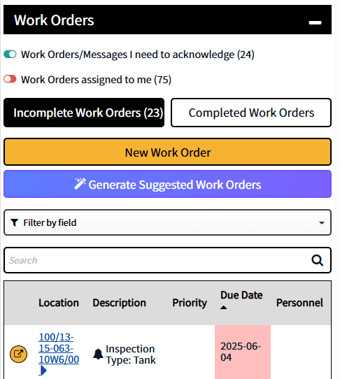
Note on naming: Depending on your organization's settings, this feature may use "Work Order" or another term throughout the app. The tab is labeled Generate Suggested Tasks (with a small wand icon). If you see "Generate Suggested Work Orders" instead of "Tasks," that is the same feature. This article uses "Task" for consistency.
Availability: EZTasks only appears when your organization has it enabled and your user account is allowed to use it. If you do not see the tab or the mobile shortcut described below, ask your administrator.
When to Use EZTasks
- After a field meeting - upload the meeting notes or minutes document to capture many action items in one pass
- From handwritten notes or a whiteboard photo - take a picture and upload the image to let the AI read it
- On mobile without typing - open the Copy & Paste Text mode, tap the text area, and use your device's built-in talk-to-text (microphone key on the keyboard) to speak your notes
- From the mobile/offline app while you have service - use the Generate Suggested Tasks shortcut on the Tasks module to jump straight to this workflow in your browser
How to Use EZTasks
The process has two stages: submit your notes, then review and convert each suggestion.
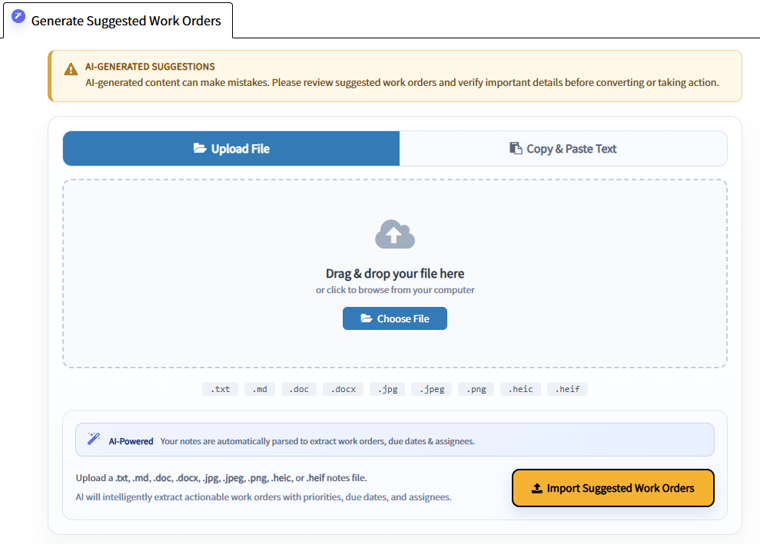
Read the AI-Generated Suggestions notice at the top of the tab before you import. It reminds you that AI output can be wrong and that you should verify details before converting suggestions or acting on them. The same kind of reminder appears again above the list after suggestions are created.
Stage 1: Submit Your Notes
- Open the Task Report - either:
- Go to Reports > Operations & Inspections > Task Report in the top navigation, or
- From the mobile/offline app while you are online: open Tasks on the dashboard or a location, then click Generate Suggested Tasks (wand icon). That opens the Task Report in your browser on the Generate Suggested Tasks tab.
- Go to Reports > Operations & Inspections > Task Report in the top navigation, or
- Open the Generate Suggested Tasks tab - click Generate Suggested Tasks. It appears next to the main report tab and shows a small wand icon. If you already arrived here from the mobile Generate Suggested Tasks shortcut, skip this step.
- Choose your input method:
- Upload File (default) - drag and drop your file onto the upload area, or click Choose File to browse. Accepted formats:
.txt,.md,.doc,.docx,.jpg,.jpeg,.png,.heic, and.heif. HEIC and HEIF photos are converted to JPEG in the browser before upload when conversion is supported.- Copy & Paste Text - switch to Copy & Paste Text and paste your notes into the box (placeholder: "Paste notes here…"). On mobile, tap the text box and use your keyboard's microphone/talk-to-text button to speak your notes.
- Upload File (default) - drag and drop your file onto the upload area, or click Choose File to browse. Accepted formats:
- Click Import Suggested Tasks - the primary button at the bottom right of the panel. While the request runs, the button shows Converting Notes….
- Wait for processing - a loading bar appears with the message "Converting notes into suggested tasks…" and supporting text while the AI runs. This may take several seconds depending on the length of your notes.
Stage 2: Review and Convert Suggestions
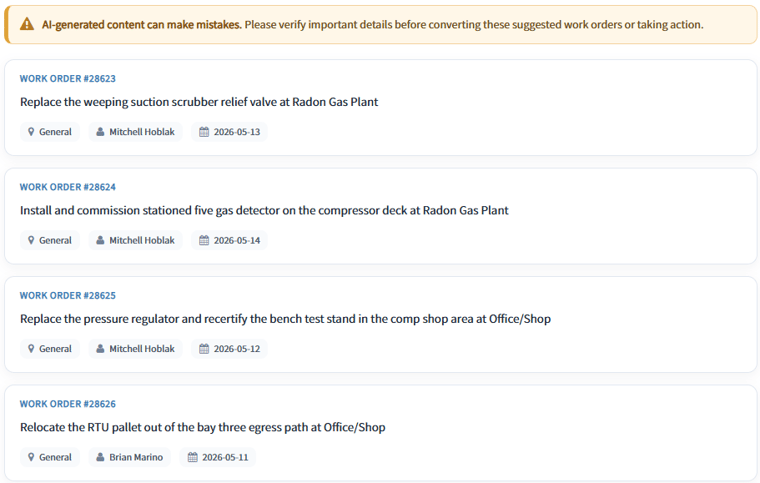
After EZTasks finishes processing your submitted notes (Stage 1), the page scrolls to a list of suggested task cards beneath the upload panel. A second reminder warns that AI-generated content can be mistaken — verify important details before you convert. Each card shows the description the AI pulled from your notes, and may also show a due date and a name if those were mentioned in the notes. Location and real assignments are not inferred from the import — you set those when you review the task. Suggested tasks are not yet live — they need to be opened, completed, and converted one at a time.
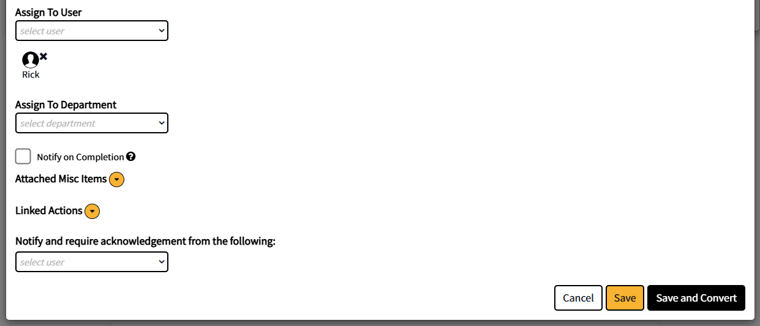
- Click a task card to open the task in a details modal (read-first view). Click Edit (pencil) to open the full task form where you can change fields and use Save and Convert. The form opens with the description and due date the import already stored (if any).
- Fill in the required fields:
- Location - search for and select the location this task belongs to. Leave this unset only if the task is not specific to any location (it will show as "General").
- Assigned User or Department - assign to at least one user or department. Save and Convert stays disabled until this is filled in and the description is not empty.
- Location - search for and select the location this task belongs to. Leave this unset only if the task is not specific to any location (it will show as "General").
- Review and adjust optional fields as needed:
- Due Date - confirm or change the date the AI extracted, or set one if none was found
- Priority, Personnel Type, Task Tag, and other fields shown based on your organization's settings
- Due Date - confirm or change the date the AI extracted, or set one if none was found
- Click Save and Convert to turn the suggestion into a live, active task.
Understanding Suggested Task Cards
After EZTasks processes your notes, each suggested task appears as a card in the results list on the Generate Suggested Tasks tab. The import flow fills in description from the AI and may fill in due date and a name string from the notes. Everything else — including a real location and assigned user or department — you add or confirm in the review form. The card typically shows:
- Task - the suggested task number (e.g.
Task #1234) - Description - the action item text the AI extracted
- Location row - imports are created as General; the app does not match notes to a site for you. Choose the correct location when you open and convert the task
- Name (optional) - plain text when the notes mentioned someone; this is not the same as assigning a user in EZ Ops — pick the real assignee in the review form
- Due date (optional) - shown when the AI could derive a calendar date from the notes
Priority and personnel type are not populated on the card by the import; set them during review if your organization uses those fields.
HOW AN ADMIN CAN TURN ON EZ-TASKS FOR A USER
Firstly, activate on the org setting page which activates it for the organization
Then to turn it on for an individual user, we will need to to the user settings page, click on users and then select the user to update. You will be taken to that users' user setting page.
There you can see the import suggested task, activate that check box and it will be activated for that user.
Common Issues
"No actionable tasks were detected" (warning shown after processing finishes with no extracted tasks)
- Try cropping the image to just the notes area — surrounding UI, message bubbles, or document chrome confuse the AI's extraction
- Use a clearer screenshot or higher-contrast image if the text is faint, blurry, or low-resolution
- Paste the text directly with Copy & Paste Text if the image contains a long conversation; OCR on dense conversational screenshots is less reliable than pasted text
"We couldn't process that upload" (red error shown when the file or text could not be read)
- Confirm the file extension is one of:
.txt,.md,.doc,.docx,.jpg,.jpeg,.png— the server validates to these types after any HEIC/HEIF conversion - For
.heicor.heiffiles, conversion happens in the browser first. If you see a message that conversion failed or is unavailable, export or re-save the photo as.jpgor.pngand upload again - For
.docand.docxfiles, confirm the document is not password-protected or corrupted; re-saving from Word usually fixes encoding issues - For pasted text, confirm the text box is not empty after trimming whitespace
"Some lines were not imported" (yellow warning when at least one AI-extracted item failed to save as a suggested task)
- Successful suggestions are already in the list — process those first
- The screen only shows this general warning, not which items failed; compare your notes to the suggestions you received and re-submit anything still missing
Save and Convert stays disabled when reviewing a suggestion
- The task description must not be empty (it should already be filled in by the AI)
- At least one user or department must be assigned. If neither is set, Save and Convert stays greyed out
Tips & Recommendations
- Set the location before picking an assignee - the assignee dropdown filters to users assigned to the selected location. If you pick the assignee first and then change the location, the assignee may disappear from the dropdown and need to be re-selected.
- For dense or messy notes, paste text instead of uploading an image - direct text input bypasses the OCR step entirely, producing more reliable extraction than a photo of the same content.
Remember: Suggested tasks are not live until you click Save and Convert — they remain in the suggestions list until you review and convert each one individually.